3 Single-container deployment
Design and deploy a simple single-container application with a service for internal access.
This category includes the following learning objectives:
- Understanding of Pods.
- Understanding of Deployments.
- Understanding of ClusterIP services.
3.1 Task 1: Design and deploy an internal dashboard
Your team needs an internal monitoring dashboard that runs inside the cluster and shows, at any time, the node and namespace they are working in.
The dashboard must be packaged as a single container image (hello-kubernetes dashboard). It does not need to be highly resilient, since brief periods of unavailability are acceptable.
However, other services inside the cluster need a stable address to reach it, so Pod IPs alone are not enough. Make sure the dashboard is strictly for internal use and not accessible from outside the cluster.
3.1.1 Architectural design
The task requires a single container image, brief downtime is acceptable, and the dashboard must be reachable only from inside the cluster. These constraints drive three design decisions:
-
Because the application is a single container, a Deployment with one replica is enough. The Deployment creates a ReplicaSet that manages the Pod. If the Pod crashes, the ReplicaSet recreates it automatically at the cost of a short period of unavailability, which the task explicitly allows.
-
Other services need a stable address to reach the dashboard. Pod IPs change every time a Pod is recreated, so we place a ClusterIP Service (
hello-dashboard-svc) in front of the Pod. The Service provides a fixed cluster-internal DNS name and load-balances traffic to the Pod. It accepts requests on port80and forwards them to the container’s port8080. -
The dashboard must not be accessible from outside the cluster. A ClusterIP Service has no external port and no route from outside the cluster network, so it satisfies this requirement by design. No Gateway, Ingress, or NodePort is needed.
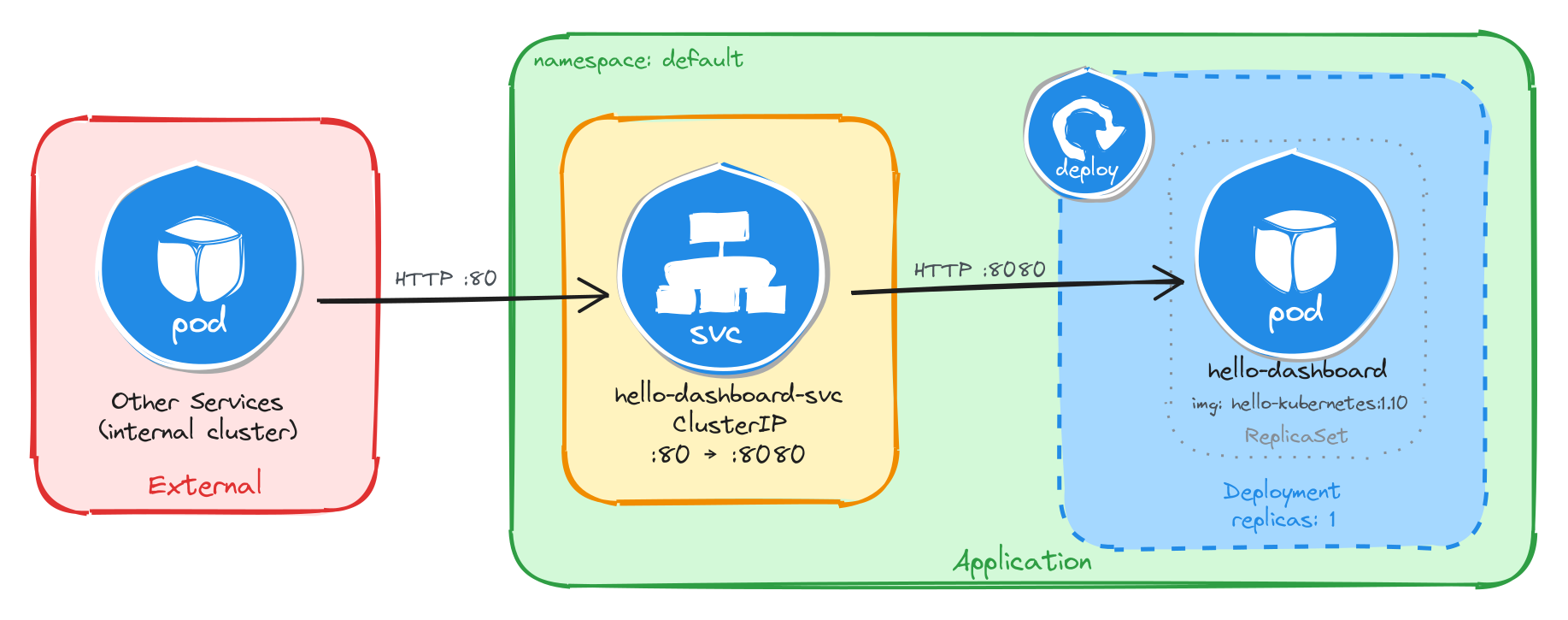
The diagram shows the resulting architecture: external clients have no path into the application, while internal services reach the dashboard through the ClusterIP Service, which forwards traffic into the Pod managed by the Deployment.
3.1.2 Implementation
We start by creating a Deployment with a single replica (the default). The task allows short periods of unavailability, so one instance is enough. We use the paulbouwer/hello-kubernetes:1.10 image and declare that the container listens on port 8080. The kubectl create deployment command automatically adds the label app=hello-dashboard to the Pods, which will be useful later when we create the Service.
kubectl create deployment hello-dashboard \
    --image=paulbouwer/hello-kubernetes:1.10 \
    --port=8080
To inspect the YAML that would be applied without actually creating the resource, use the --dry-run=client -o yaml flags:
kubectl create deployment hello-dashboard \
    --image=paulbouwer/hello-kubernetes:1.10 \
    --port=8080 \
    --dry-run=client -o yaml
The output should look similar to this:
apiVersion: apps/v1
kind: Deployment
metadata:
  creationTimestamp: null
  labels:
    app: hello-dashboard
  name: hello-dashboard
spec:
  replicas: 1
  selector:
    matchLabels:
      app: hello-dashboard
  strategy: {}
  template:
    metadata:
      creationTimestamp: null
      labels:
        app: hello-dashboard
    spec:
      containers:
      - image: paulbouwer/hello-kubernetes:1.10
        name: hello-kubernetes
        ports:
        - containerPort: 8080
        resources: {}
status: {}
Next, we expose the Deployment as a ClusterIP Service. ClusterIP is the right choice here because it gives other services inside the cluster a stable address for reaching the dashboard while keeping it inaccessible from outside.
We use kubectl expose instead of creating the Service manually with kubectl create service clusterip because it automatically sets the selector to match the Deployment Pods, which is exactly the wiring we need. The Service listens on port 80 and forwards traffic to the container port 8080.
kubectl expose deployment hello-dashboard \
    --name=hello-dashboard-svc \
    --type=ClusterIP \
    --port=80 \
    --target-port=8080
3.1.2.1 Verify resource creation
To verify that the Pod is running, execute the following command, which filters Pods by the app=hello-dashboard label automatically set by kubectl create deployment:
kubectl get pods -l app=hello-dashboard
The output should look similar to this:
NAME                               READY   STATUS    RESTARTS   AGE
hello-dashboard-6bfbf8b67c-jv8tv   1/1     Running   0          16m
To verify that the Service is configured correctly, run:
kubectl get svc hello-dashboard-svc
The output should look similar to this:
NAME                  TYPE        CLUSTER-IP     EXTERNAL-IP   PORT(S)   AGE
hello-dashboard-svc   ClusterIP   10.111.28.77   <none>        80/TCP    15
From this output, we can confirm that internal access to the dashboard is available at http://hello-dashboard-svc:80 and that external access is not possible, since no external IP is assigned.
3.1.2.2 Test the dashboard
To test the dashboard, create a temporary Pod using busybox:
kubectl run -it --rm --restart=Never busybox --image=busybox sh
Inside the busybox Pod, use wget to access the dashboard through the Service ClusterIP. The dashboard should respond with an HTML page containing cluster information.
wget -qO- http://hello-dashboard-svc
The dashboard HTML should look similar to the example below:
<!DOCTYPE html>
<html>
    <head>
        <title>Hello Kubernetes!</title>
        <!-- CSS styles omitted for brevity -->
    </head>
    <body>
        <div class="main">
            <!-- Content omitted for brevity -->
            <div class="content">
                <div id="message">Hello world!</div>
                <div id="info">
                <table>
                    <tr><th>namespace:</th><td>-</td></tr>
                    <tr><th>pod:</th><td>hello-dashboard-6bfbf8b67c-jv8tv</td></tr>
                    <tr><th>node:</th><td>- (Linux 6.8.0-94-generic)</td></tr>
                </table>
                </div>
            </div>
        </div>
    </body>
</html>
3.2 Task 2: Design and deploy an internal request inspector
Your team needs an internal debugging tool that runs inside the cluster and displays HTTP request details such as headers, source IP, and hostname. This helps developers verify how traffic flows through the cluster.
The tool must be packaged as a single container image (traefik/whoami). It does not need to be highly resilient, since brief periods of unavailability are acceptable.
However, other services inside the cluster need a stable address to reach it, so Pod IPs alone are not enough. Make sure the tool is strictly for internal use and not accessible from outside the cluster.
3.2.1 Architectural design
The task requires a single container image, brief downtime is acceptable, and the request inspector must be reachable only from inside the cluster. These constraints drive three design decisions:
-
Because the application is a single container, a Deployment with one replica is enough. The Deployment creates a ReplicaSet that manages the Pod. If the Pod crashes, the ReplicaSet recreates it automatically at the cost of a short period of unavailability, which the task explicitly allows.
-
Other services need a stable address to reach the request inspector. Pod IPs change every time a Pod is recreated, so we place a ClusterIP Service (
whoami-inspector-svc) in front of the Pod. The Service provides a fixed cluster-internal DNS name and load-balances traffic to the Pod. It accepts requests on port8080and forwards them to the container’s port80. -
The request inspector must not be accessible from outside the cluster. A ClusterIP Service has no external port and no route from outside the cluster network, so it satisfies this requirement by design. No Gateway, Ingress, or NodePort is needed.
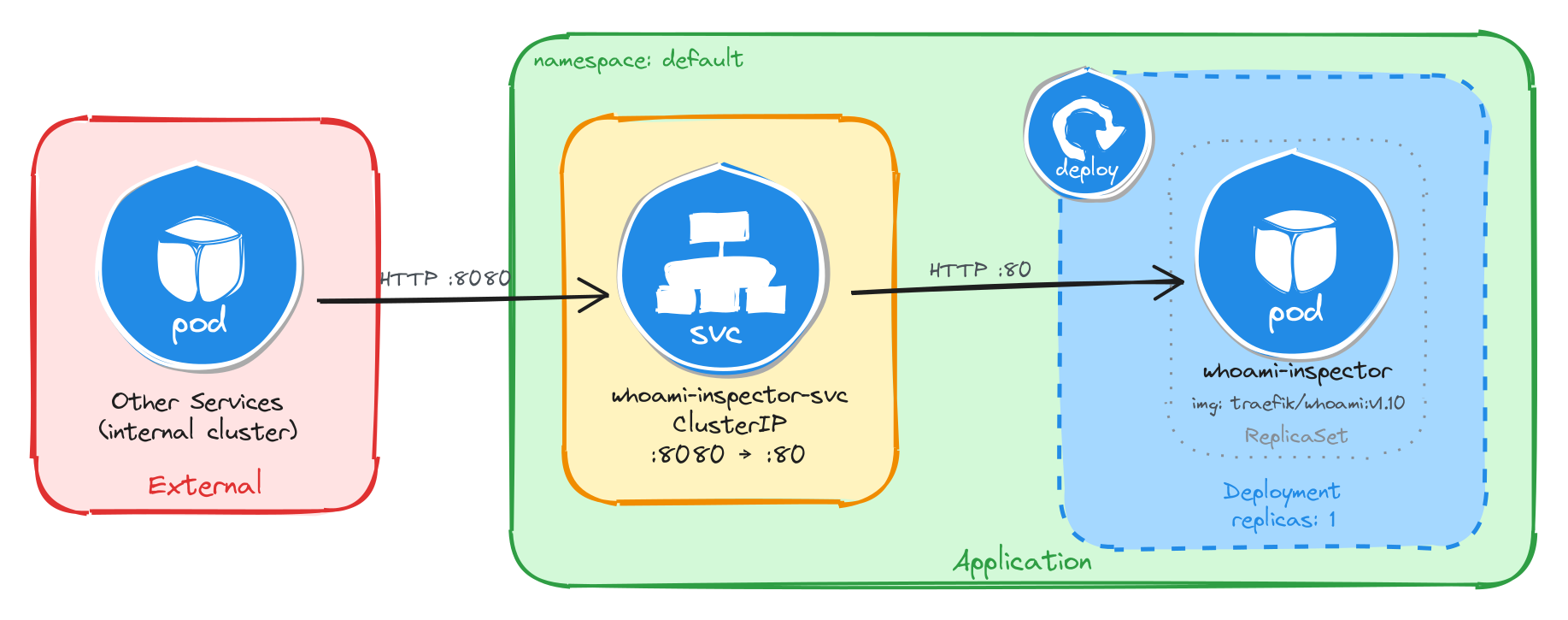
The diagram shows the resulting architecture: external clients have no path into the application, while internal services reach the request inspector through the ClusterIP Service, which forwards traffic into the Pod managed by the Deployment.
3.2.2 Implementation
We start by creating a Deployment with a single replica (the default). The task allows short periods of unavailability, so one instance is enough. We use the traefik/whoami:v1.10 image and declare that the container listens on port 80. The kubectl create deployment command automatically adds the label app=whoami-inspector to the Pods, which will be useful later when we create the Service.
kubectl create deployment whoami-inspector \
    --image=traefik/whoami:v1.10 \
    --port=80
To inspect the YAML that would be applied without actually creating the resource, use the --dry-run=client -o yaml flags:
kubectl create deployment whoami-inspector \
    --image=traefik/whoami:v1.10 \
    --port=80 \
    --dry-run=client -o yaml
The output should look similar to this:
apiVersion: apps/v1
kind: Deployment
metadata:
  creationTimestamp: null
  labels:
    app: whoami-inspector
  name: whoami-inspector
spec:
  replicas: 1
  selector:
    matchLabels:
      app: whoami-inspector
  strategy: {}
  template:
    metadata:
      creationTimestamp: null
      labels:
        app: whoami-inspector
    spec:
      containers:
      - image: traefik/whoami:v1.10
        name: whoami
        ports:
        - containerPort: 80
        resources: {}
status: {}
Next, we expose the Deployment as a ClusterIP Service. ClusterIP is the right choice here because it gives other services inside the cluster a stable address for reaching the request inspector while keeping it inaccessible from outside.
We use kubectl expose instead of creating the Service manually with kubectl create service clusterip because it automatically sets the selector to match the Deployment Pods, which is exactly the wiring we need. The Service listens on port 8080 and forwards traffic to the container port 80.
kubectl expose deployment whoami-inspector \
    --name=whoami-inspector-svc \
    --type=ClusterIP \
    --port=8080 \
    --target-port=80
3.2.2.1 Verify resource creation
To verify that the Pod is running, execute the following command, which filters Pods by the app=whoami-inspector label automatically set by kubectl create deployment:
kubectl get pods -l app=whoami-inspector
The output should look similar to this:
NAME                                READY   STATUS    RESTARTS   AGE
whoami-inspector-5f4b8d7c9a-k2m7p   1/1     Running   0          12m
To verify that the Service is configured correctly, run:
kubectl get svc whoami-inspector-svc
The output should look similar to this:
NAME                   TYPE        CLUSTER-IP      EXTERNAL-IP   PORT(S)    AGE
whoami-inspector-svc   ClusterIP   10.96.145.203   <none>        8080/TCP   10m
From this output, we can confirm that internal access to the request inspector is available at http://whoami-inspector-svc:8080 and that external access is not possible, since no external IP is assigned.
3.2.2.2 Test the request inspector
To test the request inspector, create a temporary Pod using busybox:
kubectl run -it --rm --restart=Never busybox --image=busybox sh
Inside the busybox Pod, use wget to access the request inspector through the Service ClusterIP. The tool should respond with plain text showing HTTP request details.
wget -qO- http://whoami-inspector-svc:8080
The response should look similar to the example below:
Hostname: whoami-inspector-5f4b8d7c9a-k2m7p
IP: 127.0.0.1
IP: 10.244.0.12
RemoteAddr: 10.244.0.1:48372
GET / HTTP/1.1
Host: whoami-inspector-svc:8080
User-Agent: Wget
3.3 Task 3: Design and deploy an internal health endpoint
Your team needs an internal health endpoint that runs inside the cluster and returns pod metadata in JSON format. This helps the platform team verify cluster connectivity and inspect runtime information about running workloads.
The endpoint must be packaged as a single container image (podinfo). It does not need to be highly resilient, since brief periods of unavailability are acceptable.
However, other services inside the cluster need a stable address to reach it, so Pod IPs alone are not enough. Make sure the endpoint is strictly for internal use and not accessible from outside the cluster.
3.3.1 Architectural design
The task requires a single container image, brief downtime is acceptable, and the health endpoint must be reachable only from inside the cluster. These constraints drive three design decisions:
-
Because the application is a single container, a Deployment with one replica is enough. The Deployment creates a ReplicaSet that manages the Pod. If the Pod crashes, the ReplicaSet recreates it automatically at the cost of a short period of unavailability, which the task explicitly allows.
-
Other services need a stable address to reach the health endpoint. Pod IPs change every time a Pod is recreated, so we place a ClusterIP Service (
podinfo-health-svc) in front of the Pod. The Service provides a fixed cluster-internal DNS name and load-balances traffic to the Pod. It accepts requests on port9090and forwards them to the container’s port9898. -
The health endpoint must not be accessible from outside the cluster. A ClusterIP Service has no external port and no route from outside the cluster network, so it satisfies this requirement by design. No Gateway, Ingress, or NodePort is needed.
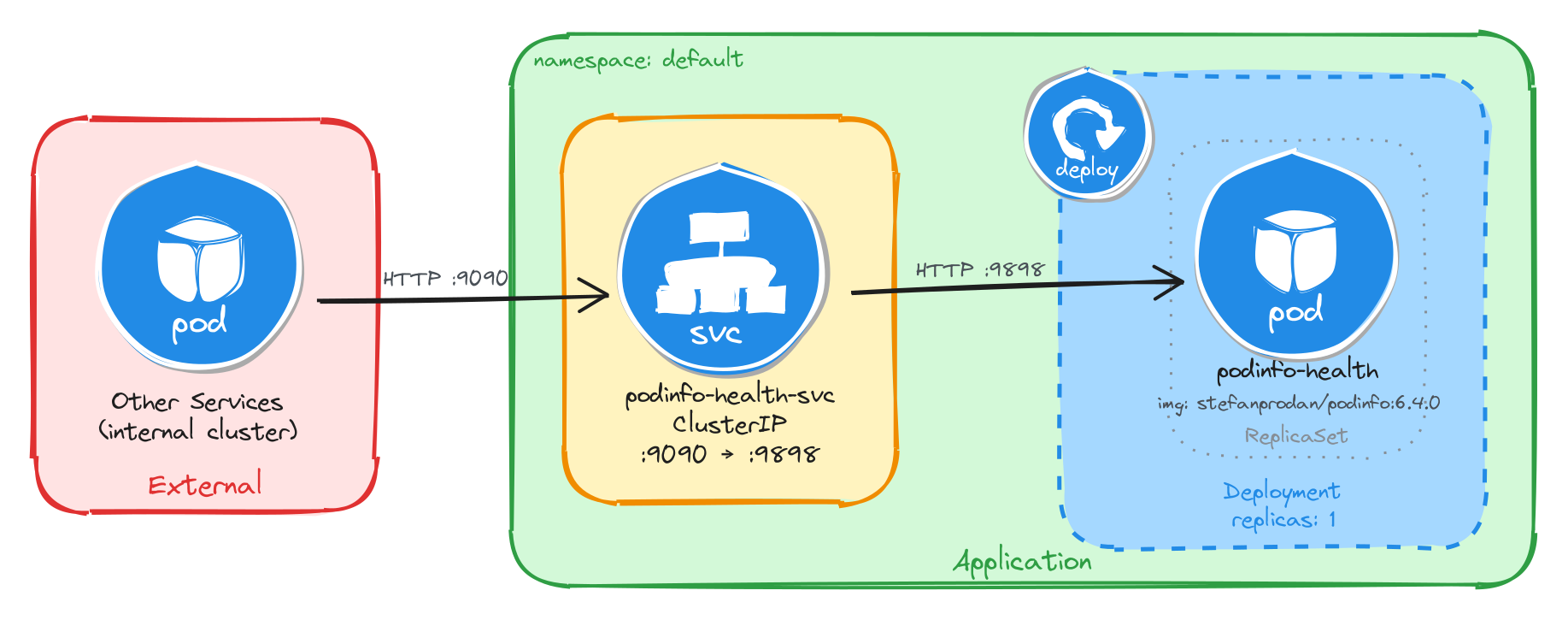
The diagram shows the resulting architecture: external clients have no path into the application, while internal services reach the health endpoint through the ClusterIP Service, which forwards traffic into the Pod managed by the Deployment.
3.3.2 Implementation
We start by creating a Deployment with a single replica (the default). The task allows short periods of unavailability, so one instance is enough. We use the stefanprodan/podinfo:6.4.0 image and declare that the container listens on port 9898. The kubectl create deployment command automatically adds the label app=podinfo-health to the Pods, which will be useful later when we create the Service.
kubectl create deployment podinfo-health \
    --image=stefanprodan/podinfo:6.4.0 \
    --port=9898
To inspect the YAML that would be applied without actually creating the resource, use the --dry-run=client -o yaml flags:
kubectl create deployment podinfo-health \
    --image=stefanprodan/podinfo:6.4.0 \
    --port=9898 \
    --dry-run=client -o yaml
The output should look similar to this:
apiVersion: apps/v1
kind: Deployment
metadata:
  creationTimestamp: null
  labels:
    app: podinfo-health
  name: podinfo-health
spec:
  replicas: 1
  selector:
    matchLabels:
      app: podinfo-health
  strategy: {}
  template:
    metadata:
      creationTimestamp: null
      labels:
        app: podinfo-health
    spec:
      containers:
      - image: stefanprodan/podinfo:6.4.0
        name: podinfo
        ports:
        - containerPort: 9898
        resources: {}
status: {}
Next, we expose the Deployment as a ClusterIP Service. ClusterIP is the right choice here because it gives other services inside the cluster a stable address for reaching the health endpoint while keeping it inaccessible from outside.
We use kubectl expose instead of creating the Service manually with kubectl create service clusterip because it automatically sets the selector to match the Deployment Pods, which is exactly the wiring we need. The Service listens on port 9090 and forwards traffic to the container port 9898.
kubectl expose deployment podinfo-health \
    --name=podinfo-health-svc \
    --type=ClusterIP \
    --port=9090 \
    --target-port=9898
3.3.2.1 Verify resource creation
To verify that the Pod is running, execute the following command, which filters Pods by the app=podinfo-health label automatically set by kubectl create deployment:
kubectl get pods -l app=podinfo-health
The output should look similar to this:
NAME                              READY   STATUS    RESTARTS   AGE
podinfo-health-7d6c8b4f59-r3n8x   1/1     Running   0          8m
To verify that the Service is configured correctly, run:
kubectl get svc podinfo-health-svc
The output should look similar to this:
NAME                 TYPE        CLUSTER-IP      EXTERNAL-IP   PORT(S)    AGE
podinfo-health-svc   ClusterIP   10.104.72.186   <none>        9090/TCP   6m
From this output, we can confirm that internal access to the health endpoint is available at http://podinfo-health-svc:9090 and that external access is not possible, since no external IP is assigned.
3.3.2.2 Test the health endpoint
To test the health endpoint, create a temporary Pod using busybox:
kubectl run -it --rm --restart=Never busybox --image=busybox sh
Inside the busybox Pod, use wget to access the health endpoint through the Service ClusterIP. The endpoint should respond with a JSON payload containing pod metadata.
wget -qO- http://podinfo-health-svc:9090
The response should look similar to the example below:
{
  "hostname": "podinfo-health-7d6c8b4f59-r3n8x",
  "version": "6.4.0",
  "revision": "",
  "color": "#34577c",
  "logo": "https://raw.githubusercontent.com/stefanprodan/podinfo/gh-pages/cuddle_clap.gif",
  "message": "greetings from podinfo v6.4.0",
  "goos": "linux",
  "goarch": "amd64",
  "runtime": "go1.21.0",
  "num_goroutine": "8",
  "num_cpu": "2"
}
3.4 Task 4: Design and deploy an internal welcome page
Your team needs an internal welcome page that runs inside the cluster and displays server information such as the server address, server name, and request URI. This helps developers quickly confirm that routing and DNS resolution are working correctly.
The welcome page must be packaged as a single container image (nginxdemos/hello). It does not need to be highly resilient, since brief periods of unavailability are acceptable.
However, other services inside the cluster need a stable address to reach it, so Pod IPs alone are not enough. Make sure the welcome page is strictly for internal use and not accessible from outside the cluster.
3.4.1 Architectural design
The task requires a single container image, brief downtime is acceptable, and the welcome page must be reachable only from inside the cluster. These constraints drive three design decisions:
-
Because the application is a single container, a Deployment with one replica is enough. The Deployment creates a ReplicaSet that manages the Pod. If the Pod crashes, the ReplicaSet recreates it automatically at the cost of a short period of unavailability, which the task explicitly allows.
-
Other services need a stable address to reach the welcome page. Pod IPs change every time a Pod is recreated, so we place a ClusterIP Service (
nginx-welcome-svc) in front of the Pod. The Service provides a fixed cluster-internal DNS name and load-balances traffic to the Pod. It accepts requests on port3000and forwards them to the container’s port80. -
The welcome page must not be accessible from outside the cluster. A ClusterIP Service has no external port and no route from outside the cluster network, so it satisfies this requirement by design. No Gateway, Ingress, or NodePort is needed.
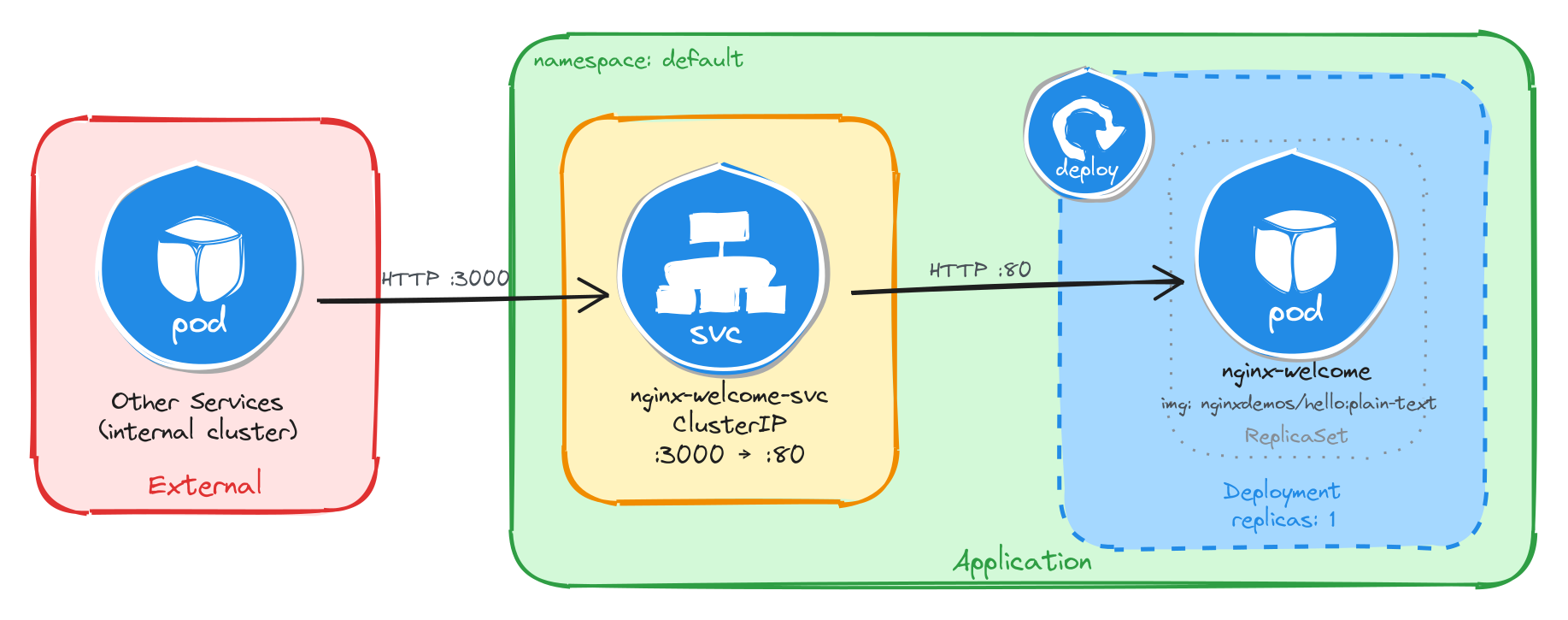
The diagram shows the resulting architecture: external clients have no path into the application, while internal services reach the welcome page through the ClusterIP Service, which forwards traffic into the Pod managed by the Deployment.
3.4.2 Implementation
We start by creating a Deployment with a single replica (the default). The task allows short periods of unavailability, so one instance is enough. We use the nginxdemos/hello:plain-text image and declare that the container listens on port 80. The kubectl create deployment command automatically adds the label app=nginx-welcome to the Pods, which will be useful later when we create the Service.
kubectl create deployment nginx-welcome \
    --image=nginxdemos/hello:plain-text \
    --port=80
To inspect the YAML that would be applied without actually creating the resource, use the --dry-run=client -o yaml flags:
kubectl create deployment nginx-welcome \
    --image=nginxdemos/hello:plain-text \
    --port=80 \
    --dry-run=client -o yaml
The output should look similar to this:
apiVersion: apps/v1
kind: Deployment
metadata:
  creationTimestamp: null
  labels:
    app: nginx-welcome
  name: nginx-welcome
spec:
  replicas: 1
  selector:
    matchLabels:
      app: nginx-welcome
  strategy: {}
  template:
    metadata:
      creationTimestamp: null
      labels:
        app: nginx-welcome
    spec:
      containers:
      - image: nginxdemos/hello:plain-text
        name: hello
        ports:
        - containerPort: 80
        resources: {}
status: {}
Next, we expose the Deployment as a ClusterIP Service. ClusterIP is the right choice here because it gives other services inside the cluster a stable address for reaching the welcome page while keeping it inaccessible from outside.
We use kubectl expose instead of creating the Service manually with kubectl create service clusterip because it automatically sets the selector to match the Deployment Pods, which is exactly the wiring we need. The Service listens on port 3000 and forwards traffic to the container port 80.
kubectl expose deployment nginx-welcome \
    --name=nginx-welcome-svc \
    --type=ClusterIP \
    --port=3000 \
    --target-port=80
3.4.2.1 Verify resource creation
To verify that the Pod is running, execute the following command, which filters Pods by the app=nginx-welcome label automatically set by kubectl create deployment:
kubectl get pods -l app=nginx-welcome
The output should look similar to this:
NAME                             READY   STATUS    RESTARTS   AGE
nginx-welcome-6c9d4f8b5a-t4w2q   1/1     Running   0          10m
To verify that the Service is configured correctly, run:
kubectl get svc nginx-welcome-svc
The output should look similar to this:
NAME                TYPE        CLUSTER-IP      EXTERNAL-IP   PORT(S)    AGE
nginx-welcome-svc   ClusterIP   10.98.231.114   <none>        3000/TCP   8m
From this output, we can confirm that internal access to the welcome page is available at http://nginx-welcome-svc:3000 and that external access is not possible, since no external IP is assigned.
3.4.2.2 Test the welcome page
To test the welcome page, create a temporary Pod using busybox:
kubectl run -it --rm --restart=Never busybox --image=busybox sh
Inside the busybox Pod, use wget to access the welcome page through the Service ClusterIP. The page should respond with plain text showing server information.
wget -qO- http://nginx-welcome-svc:3000
The response should look similar to the example below:
Server address: 10.244.0.15:80
Server name: nginx-welcome-6c9d4f8b5a-t4w2q
Date: 25/Mar/2026:10:32:18 +0000
URI: /
Request ID: a1b2c3d4e5f6a7b8c9d0e1f2a3b4c5d6
3.5 Task 5: Design and deploy an internal echo service
Your team needs an internal echo service that runs inside the cluster and mirrors back the body of any HTTP request it receives. This helps developers test and validate payloads sent by other microservices without needing an external tool.
The echo service must be packaged as a single container image (jmalloc/echo-server). It does not need to be highly resilient, since brief periods of unavailability are acceptable.
However, other services inside the cluster need a stable address to reach it, so Pod IPs alone are not enough. Make sure the echo service is strictly for internal use and not accessible from outside the cluster.
3.5.1 Architectural design
The task requires a single container image, brief downtime is acceptable, and the echo service must be reachable only from inside the cluster. These constraints drive three design decisions:
-
Because the application is a single container, a Deployment with one replica is enough. The Deployment creates a ReplicaSet that manages the Pod. If the Pod crashes, the ReplicaSet recreates it automatically at the cost of a short period of unavailability, which the task explicitly allows.
-
Other services need a stable address to reach the echo service. Pod IPs change every time a Pod is recreated, so we place a ClusterIP Service (
echo-service-svc) in front of the Pod. The Service provides a fixed cluster-internal DNS name and load-balances traffic to the Pod. It accepts requests on port8080and forwards them to the container’s port8080. -
The echo service must not be accessible from outside the cluster. A ClusterIP Service has no external port and no route from outside the cluster network, so it satisfies this requirement by design. No Gateway, Ingress, or NodePort is needed.
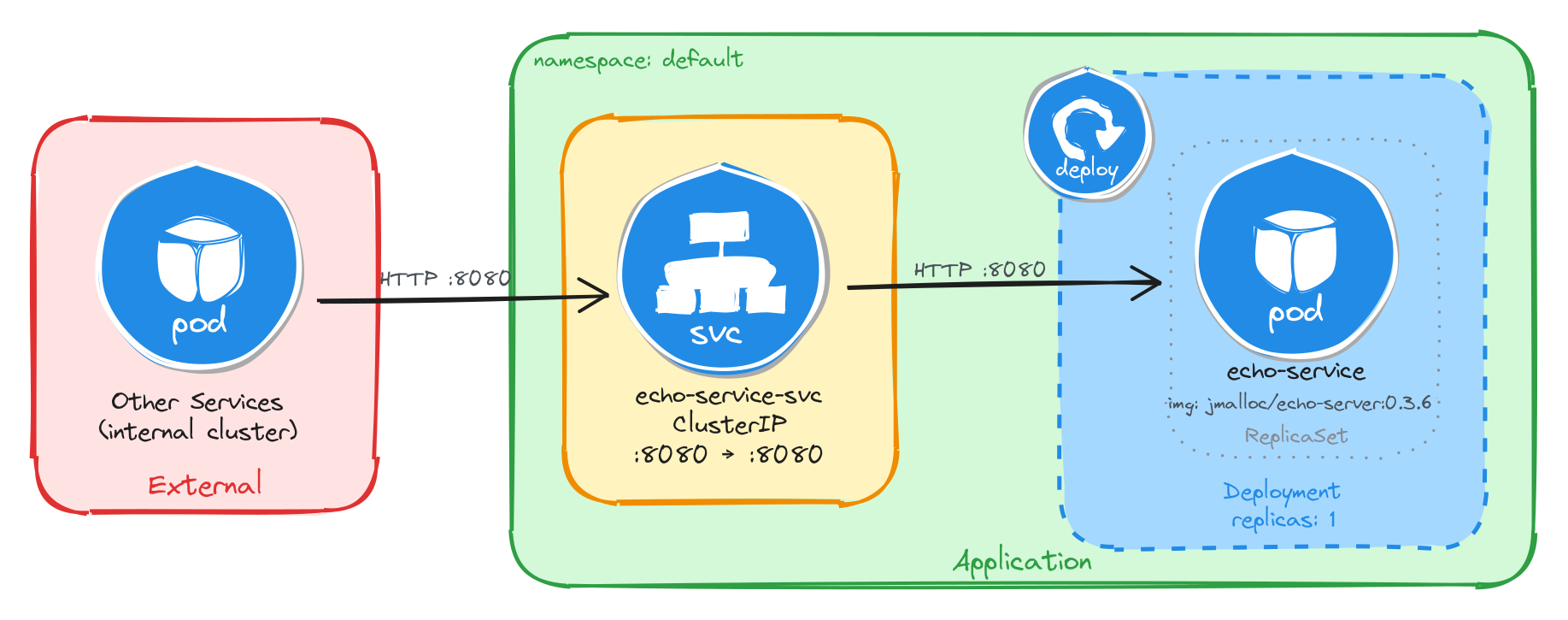
The diagram shows the resulting architecture: external clients have no path into the application, while internal services reach the echo service through the ClusterIP Service, which forwards traffic into the Pod managed by the Deployment.
3.5.2 Implementation
We start by creating a Deployment with a single replica (the default). The task allows short periods of unavailability, so one instance is enough. We use the jmalloc/echo-server:0.3.7 image and declare that the container listens on port 8080. The kubectl create deployment command automatically adds the label app=echo-service to the Pods, which will be useful later when we create the Service.
kubectl create deployment echo-service \
    --image=jmalloc/echo-server:0.3.6 \
    --port=8080
To inspect the YAML that would be applied without actually creating the resource, use the --dry-run=client -o yaml flags:
kubectl create deployment echo-service \
    --image=jmalloc/echo-server:0.3.6 \
    --port=8080 \
    --dry-run=client -o yaml
The output should look similar to this:
apiVersion: apps/v1
kind: Deployment
metadata:
  creationTimestamp: null
  labels:
    app: echo-service
  name: echo-service
spec:
  replicas: 1
  selector:
    matchLabels:
      app: echo-service
  strategy: {}
  template:
    metadata:
      creationTimestamp: null
      labels:
        app: echo-service
    spec:
      containers:
      - image: jmalloc/echo-server:0.3.6
        name: echo-server
        ports:
        - containerPort: 8080
        resources: {}
status: {}
Next, we expose the Deployment as a ClusterIP Service. ClusterIP is the right choice here because it gives other services inside the cluster a stable address for reaching the echo service while keeping it inaccessible from outside.
We use kubectl expose instead of creating the Service manually with kubectl create service clusterip because it automatically sets the selector to match the Deployment Pods, which is exactly the wiring we need. The Service listens on port 8080 and forwards traffic to the container port 8080.
kubectl expose deployment echo-service \
    --name=echo-service-svc \
    --type=ClusterIP \
    --port=8080 \
    --target-port=8080
3.5.2.1 Verify resource creation
To verify that the Pod is running, execute the following command, which filters Pods by the app=echo-service label automatically set by kubectl create deployment:
kubectl get pods -l app=echo-service
The output should look similar to this:
NAME                            READY   STATUS    RESTARTS   AGE
echo-service-5b7d9f6c48-m6k3p   1/1     Running   0          7m
To verify that the Service is configured correctly, run:
kubectl get svc echo-service-svc
The output should look similar to this:
NAME               TYPE        CLUSTER-IP      EXTERNAL-IP   PORT(S)    AGE
echo-service-svc   ClusterIP   10.107.54.221   <none>        8080/TCP   5m
From this output, we can confirm that internal access to the echo service is available at http://echo-service-svc:8080 and that external access is not possible, since no external IP is assigned.
3.5.2.2 Test the echo service
To test the echo service, create a temporary Pod using busybox:
kubectl run -it --rm --restart=Never busybox --image=busybox sh
Inside the busybox Pod, use wget to send a request to the echo service through the Service ClusterIP. The service should echo back the request details.
wget -qO- http://echo-service-svc:8080
The response should look similar to the example below:
Request served by echo-service-5b7d9f6c48-m6k3p

HTTP/1.1 GET /

Host: echo-service-svc:8080
User-Agent: Wget
Connection: close